Sentinel Password Manager
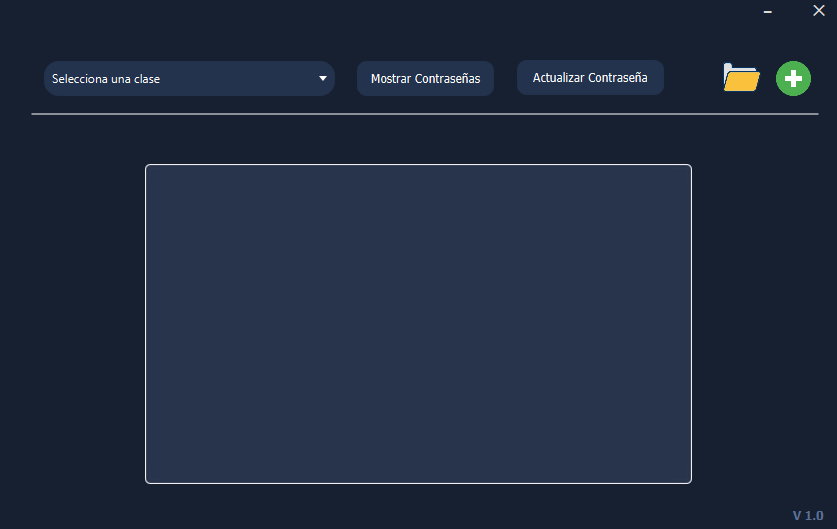
Description
Sentinel Password Manager is a desktop application developed in Java with JavaFX that allows you to securely store, manage, and retrieve passwords. The application uses encryption to protect your credentials and offers a user-friendly interface to manage different types of accounts.
System Requirements
- Java 21 or higher
- Compatible operating systems: Windows, macOS, Linux
Installation
Option 1: Run the JAR file
- Download the
Sentinel.jarfile from the repository releases. - Ensure you have Java 21 or higher installed on your system.
- Run the application with the following command:
</> bash
java -jar Sentinel-PM-2.3.jar
Option 2: Build from source
- Clone the repository:
</> bash
git clone https://github.com/RaeZ04/Sentinel cd Sentinel-main/V2.0/Sentinel_PM - Compile and package the project using Maven:
The executable JAR file will be available in the</> bash
mvn clean packagetargetfolder.
Usage
First launch
When starting the application for the first time, you will need to create a master password. This password will be used to access all your stored credentials. You will also be asked to set the path where your passwords will be saved.
Password management
- Organization by classes: Passwords are organized into "classes" or categories (e.g., Google, Santander, Steam).
- Add account: Select the category, enter the username and password (manually or by using the built-in generator), and save.
- View and copy: You can reveal the password or copy it directly to your clipboard.
- Other features: Delete accounts, update credentials, and generate secure passwords.
Security
- All master passwords are stored using a SHA-256 hash.
- Data is saved in JSON format at the location specified during setup.
- The application includes a backup system to prevent data loss.
Configuration and Troubleshooting
To access the configuration, click the gear icon to change your master password and modify the storage file location.
If you have forgotten your master password, there is no way to recover it. You will have to delete the config.json file located in the application directory and restart the App to create a new configuration.